---
title: Multiple currencies Setup
description: "Follow bellow steps for work Multiple currencies on your store **Step 1 :** ``` From your Shopify admin, go to Settings > General. ``` **Step 2**: In the **Store currency**section, Click on **Change Formatting**. 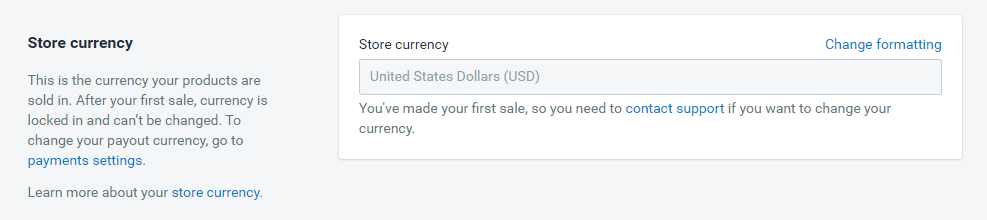 **Step 3**: Find the **HTML with…"
url: "https://www.adornthemes.com/knowledge-base/multiple-currencies-setup/"
updated: "2024-03-12"
category: FAQs
---
# Multiple currencies Setup
Follow bellow steps for work Multiple currencies on your store
**Step 1 :**
```
From your Shopify admin, go to Settings > General.
```
**Step 2**: In the **Store currency**section, Click on **Change Formatting**.

**Step 3**: Find the **HTML with currency** and the **HTML without currency** formats: **Update below fields**
HTML With currency to --> **`${{amount}}USD`**
HTML without currency to --> **`${{amount}}`**
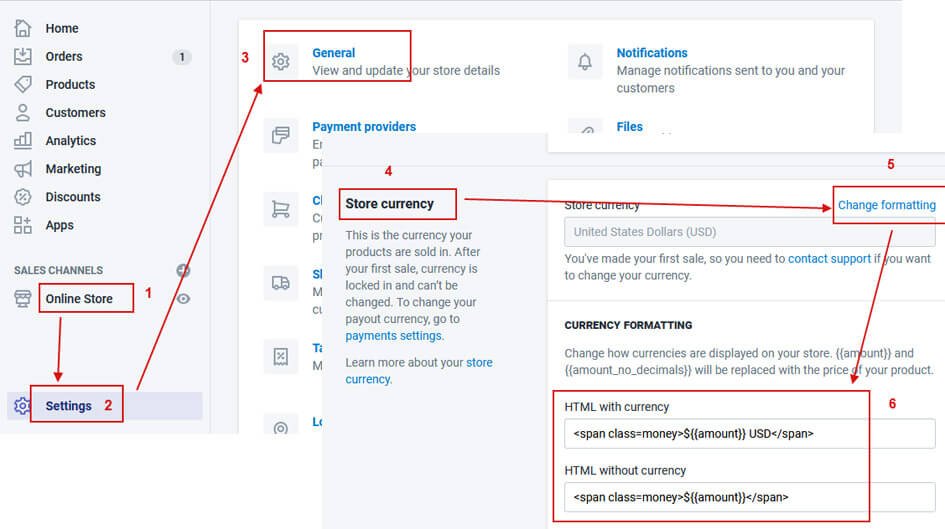
In each text field, copy and paste `` in front of the formatting text. Click **Save**.
**Note:** Do **not** put quotation marks around the word money in the span tags. Adding quotes will break the code.