The sections within the Header group can be accessed from every page. Header group’s sections appears at the top of the store.
Promotion Bar #
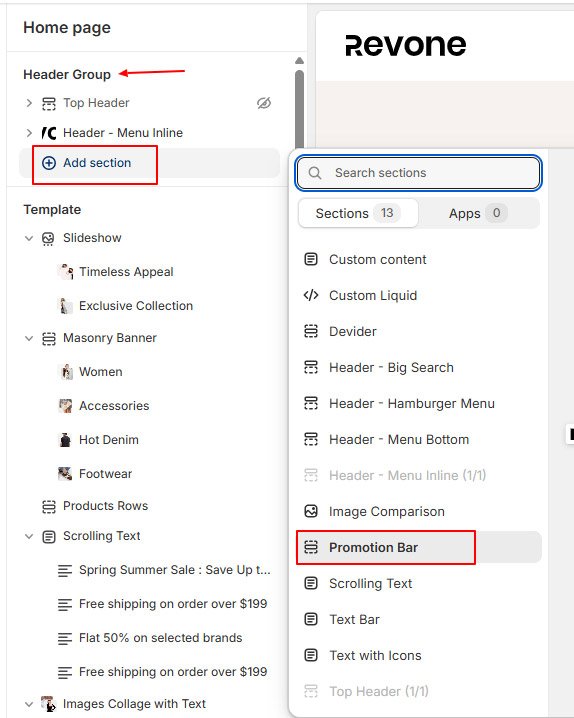
Use this section to display a sale, discount code, event, or special promotion to drive customer engagement

- In the theme editor, Home Page -> Header Group -> Click on Add section -> Promotion Bar
- Click on to section to customize style
- Click on block to edit text
- Mouse hover within section to add more promotion text and click save
Top Header #
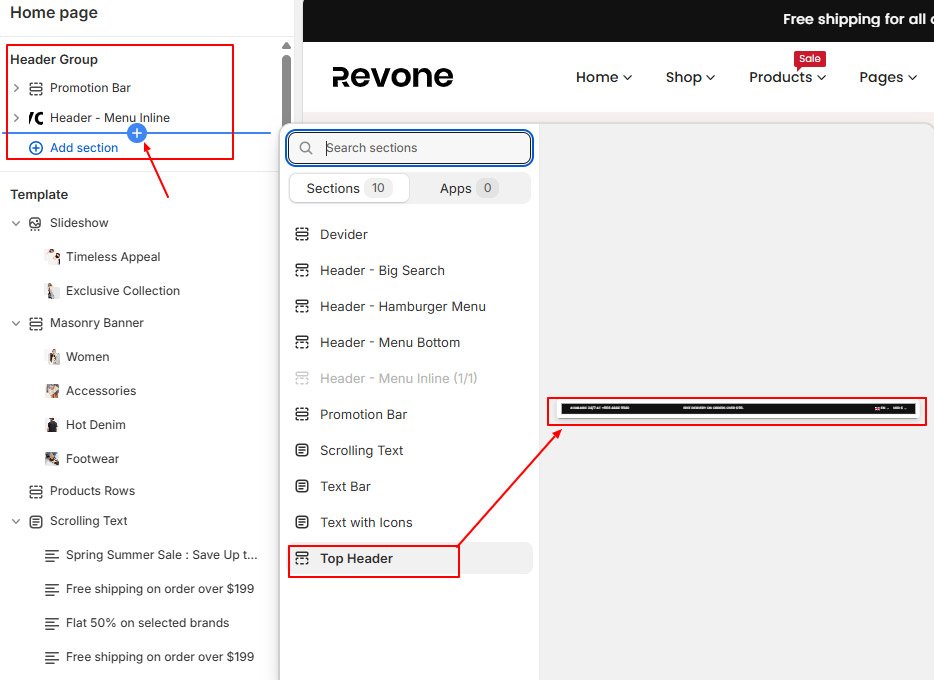
The top header is positioned on the main header. It display essential information such as links, phone number, promotional text, social media icons, and options for language and currency selection.

- In the theme editor, Home Page -> Header Group -> Click on Add section -> Top Header
- Click on to section to customize style
- Click on block to edit
- Mouse hover within section to add more block and click save
- You can choose to show up to three blocks: one on left, center and right.
- Menu Block : Display menu links. I.e. Contact Us, About Us, Help
- Text Block : Display small text.i.e. Add phone number, email address, Store time, Welcome text
- Social Icons : Display Social icons
- Currency, Language : Display Currency, Language, Social Icons and Menu Link ( Optional)
Main Header #
There are four main header designs available. You have the option to select one header from these four choices. Additionally, within each design, you can customize other styles from the header section.
Scrolling Text #
Use to show event, promotions, offers or other important information about store.

- In the theme editor, Home Page -> Header Group -> Click on Add section -> Scrolling Text
- Click on to section to customize style
- Click on block to edit text
- Mouse hover within section to add more text and click save
Text Bar #
Add this section to show Offers & Deals on your store.

- In the theme editor, Home Page -> Header Group -> Click on Add section -> Text Bar
- Click on to section to customize style
- Click on block to edit text
- Mouse hover within section to add column and click save
Text with Icons #
Add this section to show important information on your store.

- In the theme editor, Home Page -> Header Group -> Click on Add section -> Text with Icons
- Click on to section to customize style
- Click on block to edit text
- Mouse hover within section to add column and click save