Adorn Themes Adorn Themes Adorn Themes
  • Services
    • Theme Development
    • Speed & Performance
  • Themes
    • Avone
    • Revone
    • Vogal
    • Belle
    • Optimal
    • NexGeek
  • Portfolio
  • Support
    • Open Ticket
    • Knowledge Base
    • Theme Documentation
  • Blog
    • Shopify Themes
    • Shopify Apps
    • eCommerce Tips
    • SEO & Performance
  • About us
  • Contact us
  • Exclusive Offer
0

No products in the cart.

How can we help you?

Theme Installation

  • Where is my theme purchase code?
  • Install Theme
  • Recommended Apps
  • Changelog

Theme Settings

  • Color swatches trigger
  • Basic Configuration
  • Layout
  • General
  • Typography & Colors
  • Header Menu
  • Cart
  • Search
  • Products Grid
  • Scrolling Text – Products Grid
  • Product Swatches
  • Size Chart
  • Currency & Language
  • Social Media
  • Quickview Popup
  • Animations
  • Age Verification Popup

General Sections

  • Page Sections
  • Header Group
  • Footer Group
  • Overlay Group

Navigation

  • Header Menu
  • Set Menu Labels
  • Show links in Megamenu without column title?

Collection Page

  • Collection Page Banner
  • Sub Collections
  • Custom image for collections
  • Add product colors using category metafields
  • Collection Main
  • Set custom labels for products
  • Limit color swatch on products grid
  • Scrolling Text – Products Grid

Product Page

  • Color swatches trigger
  • Set custom labels for products
  • Design Product Page
  • Add product colors using category metafields
  • More Color Products
  • Size Chart trigger
  • How to set size chart?
  • Set product pre-order for shopify 2.0
  • Related products section
  • Add product descriptions with columns.
  • Add external product link?

Page Setup

  • About Us
  • Contact Us
  • FAQs
  • Brands List
  • Lookbook
  • Store Locations
  • Wishlist
  • Blog
  • Create Custom Page and add sections?
  • Cart

Blog Pages

  • Blog
  • Blog Banner

FAQs

  • Set product pre-order for shopify 2.0
View Categories
  • Home
  • Knowledge Base
  • NexGeek Shopify Theme
  • Page Setup
  • Store Locations

Store Locations

The store location page effectively displays your store locations for your customers.

Step 1 :

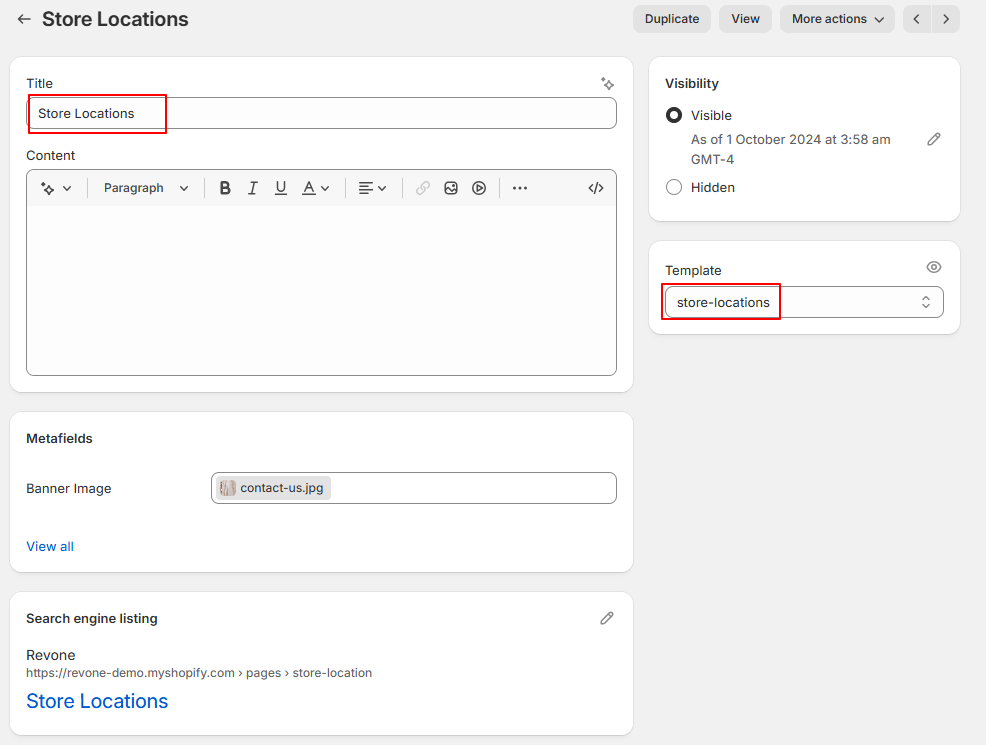
  • From your store admin, go to Online Store -> Pages -> Click Add page
  • Enter page title then select store-locations template.
  • Click Save.
locations

Step 2 :

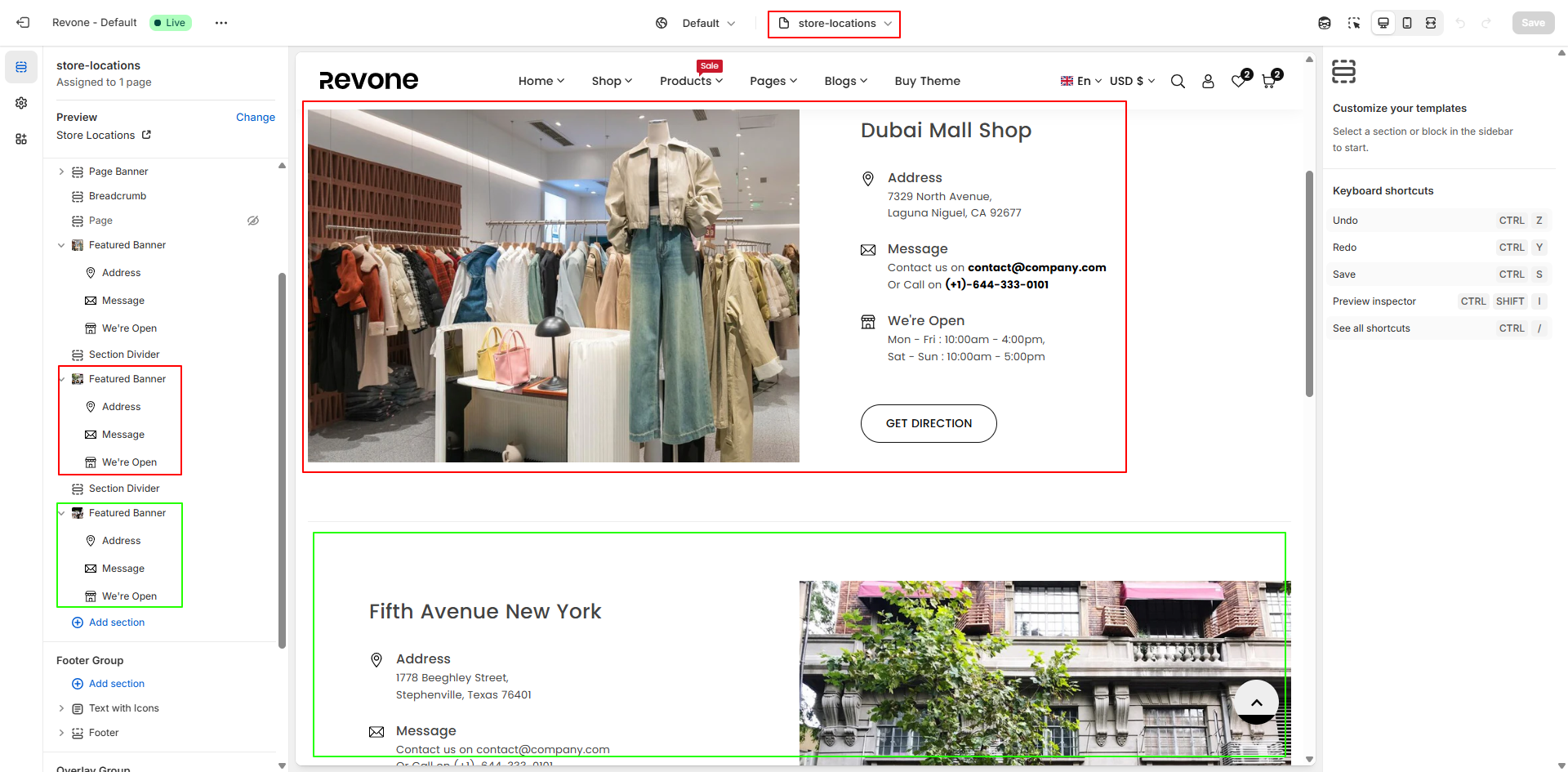
Edit store locations page from theme editor.

  • In the theme editor, Select Pages -> store-locations from top dropdown menu.
  • You can see different sections on this page including page banner,
  • Click on Featured Banner sections to edit OR Add new section
  • Make necessary change and click Save
locations2
What are your Feelings

Share This Article :

  • Facebook
  • X
  • LinkedIn
  • Pinterest
logo-200

We build premium Shopify themes that empower merchants to create exceptional online stores.Trusted by thousands of businesses worldwide, our themes are built for easy customization, powerful features, and exceptional performance.


Information
  • About Us
  • Our Services
  • Our Partners
  • Our Blogs
  • Contact Us
Customer support
  • Support Ticket
  • Knowledge Base
  • FAQ’s
  • Customization Request
  • Project Request
Why choose AdornThemes
footer-logo-1
footer-logo-2
5.0
★★★★★

987 Reviews

© 2026 AdornThemes – All Rights Reserved.

|

  • Privacy policy
  • Refund Policy
  • Facebook-f
  • Instagram
  • Youtube
  • Linkedin-in
Get your first 3 months for $1/month.
Scroll