Adorn ThemesAdorn ThemesAdorn Themes
  • Services
    • Shopify Theme Development
    • Speed & Performance Optimization
  • Themes
    • Avone
    • Revone
    • Vogal
    • Optimal
    • Belle
    • NexGeek
  • Portfolio
  • Support
    • Open Ticket
    • Knowledge Base
    • Theme Documentation
  • Blog
    • Shopify Themes
    • Shopify Apps
    • Ecommerce
    • SEO
  • About us
  • Contact us
Create a Free Store Button

How can we help you?

Theme Installation

  • Avone – How to install theme?
  • Avone Theme Update – Release Notes.
  • Avone – How to update your shopify theme?

Theme Settings

  • How to set free shipping?

Navigation

  • How to use Megamenu Navigation
  • How to display images for mobile menu items?

Collection Page

  • Set product badges/labels?
  • Set Collection banners, Short description and Countdown by metafields.
  • Collection Page – How to set product filters ?
  • Icon image for collection

Product Page

  • Guide to Setting Up Upsell Products Bundle
  • Set product badges/labels?
  • Add different size chart for each product?
  • Product Page – Product Swatches – Product Variants
  • Set product pre-order for shopify 2.0
  • Related products section
  • Display Complete the look products
  • Display different tab details for each product
  • How to add product custom option?
  • How to display FAQs tab on product detail page?
  • How to set upsell product bundle
  • Add product descriptions with columns.
  • How to display product specification tab on product page?
  • How to display color variant media gallery?

Page Setup

  • Create Custom Page and add sections?
  • How to create Landing page?
  • Setting up metafield for page banner

Blog Pages

  • Show specific product list in blog article page

FAQs

  • Set product pre-order for shopify 2.0
View Categories
  • Home
  • Knowledge Base
  • Avone Shopify Theme
  • Product Page
  • Add product descriptions with columns.

Add product descriptions with columns.

To add product description for products in Shopify, you edit each product in the admin and write clear copy in the Description field

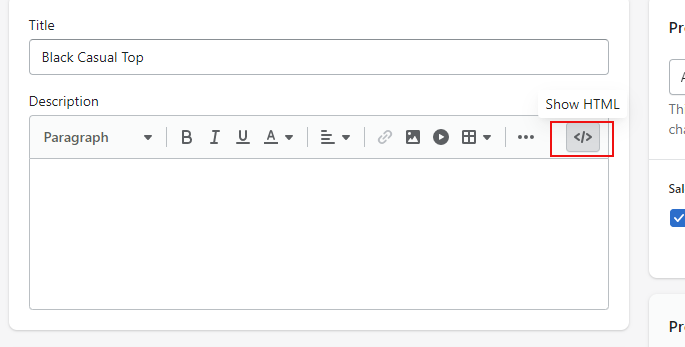
Step 1: Go to products, select product and click on “Show HTML” icon.
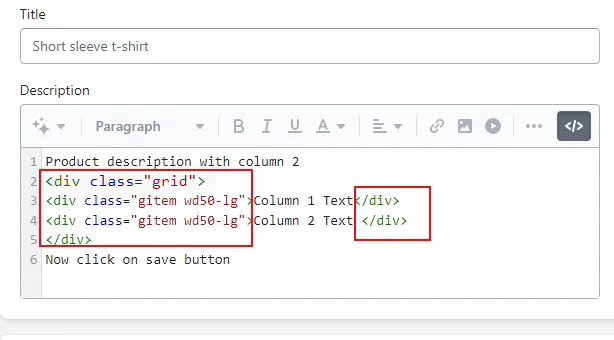
Step 2: To add in 2 columns, do as below. you need to add class as highlighted

Parent class name is grid and child class name is gitem wd50-lg
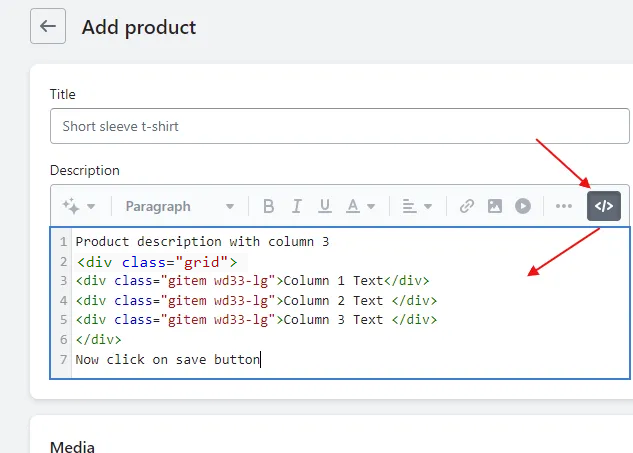
Step 3: Add in 3 columns

Parent class name is grid and child class name is gitem wd33-lg
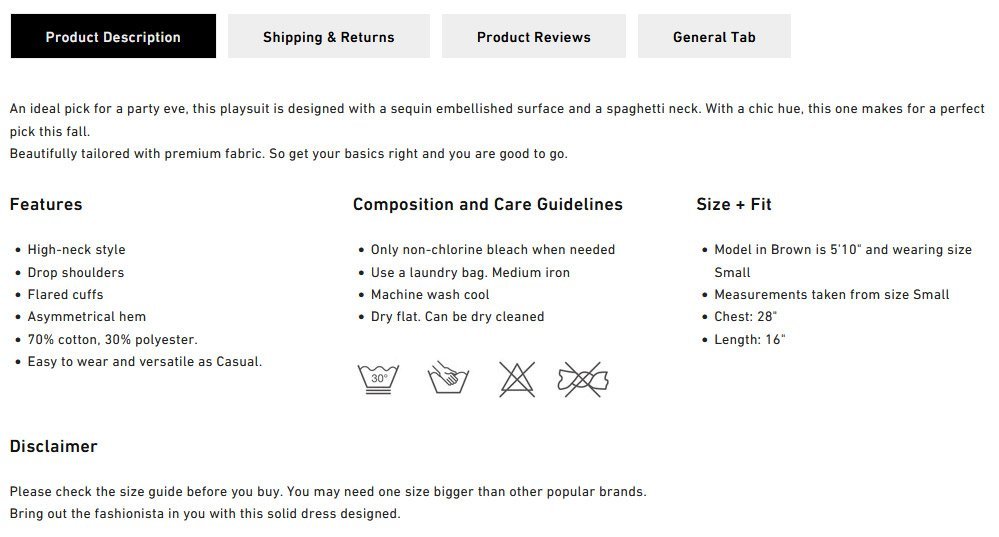
3 Columns preview from demo
What are your Feelings
Adorn Themes

We build premium shopify themes. Our themes are adored by thousands of merchants for their user-friendly nature, powerful features, reliable performance, and exceptional user interface

Information
  • About Us
  • Contact Us
  • Our Services
  • Our Partners
  • Our Blogs
Customer support
  • Support Ticket
  • Knowledge Base
  • FAQ’s
  • Need Customization?
  • Project Request?
WHY CHOOSE ADORNTHEMES
footer-logo-1
shopify-partner--logo
© 2025 AdornThemes - All Rights Reserved.
  • Social Media
  • Social Media
  • Social Media
  • Social Media
  • Social Media