Adorn Themes Adorn Themes Adorn Themes
  • Services
    • Theme Development
    • Speed & Performance
  • Themes
    • Avone
    • Revone
    • Vogal
    • Belle
    • Optimal
    • NexGeek
  • Support
    • Open Ticket
    • Knowledge Base
    • Theme Documentation
  • Blog
    • Shopify Themes
    • Shopify Apps
    • eCommerce Tips
    • SEO & Performance
  • About us
  • Contact us
  • Exclusive Offer
0

No products in the cart.

How can we help you?

Theme Installation

  • Where is my theme purchase code?
  • Avone – How to install theme?
  • Avone Theme Update – Release Notes.
  • Avone – How to update your shopify theme?

Theme Settings

  • How to set free shipping?

Navigation

  • How to use Megamenu Navigation
  • How to display images for mobile menu items?

Collection Page

  • Set product badges/labels?
  • Set Collection banners, Short description and Countdown by metafields.
  • Collection Page – How to set product filters ?
  • Icon image for collection

Product Page

  • How to set up the Icon text list (Metaobject) block
  • Create metafieldย to show Specificationsย for product comparison
  • Guide to Setting Up Upsell Products Bundle
  • Add different size chart for each product?
  • Product Page – Product Swatches – Product Variants
  • Set product pre-order for shopify 2.0
  • Related products section
  • Display Complete the look products
  • Display different tab details for each product
  • How to add product custom option?
  • How to display FAQs tab on product detail page?
  • How to set upsell product bundle
  • Add product descriptions with columns.
  • How to display product specification tab on product page?
  • How to display color variant media gallery?

Page Setup

  • Create Custom Page and add sections?
  • How to create Landing page?
  • Setting up metafield for page banner

Blog Pages

  • Show specific product list in blog article page

FAQs

  • Set product pre-order for shopify 2.0
View Categories
  • Home
  • Knowledge Base
  • Avone Shopify Theme
  • Product Page
  • Guide to Setting Up Upsell Products Bundle

Guide to Setting Up Upsell Products Bundle

Shopify upsell product bundle setup is one of the most effective ways to increase your storeโ€™s average order value. By combining related products into smart bundles, you can encourage customers to buy more with minimal effort
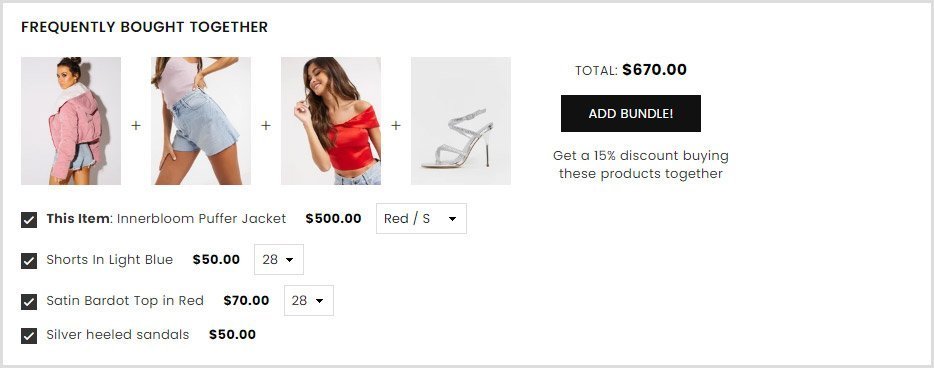
Upsell product bundle section

Theme version 6.x.x #

To offer bundled products and discounts, first you need to create a metafields and select all the products you want to offer bundled and discounted. ( You can add products that buyers should buy together.)

Step 1 :

From store admin > Settings > Metafields and metaobjects > Products > Add definition
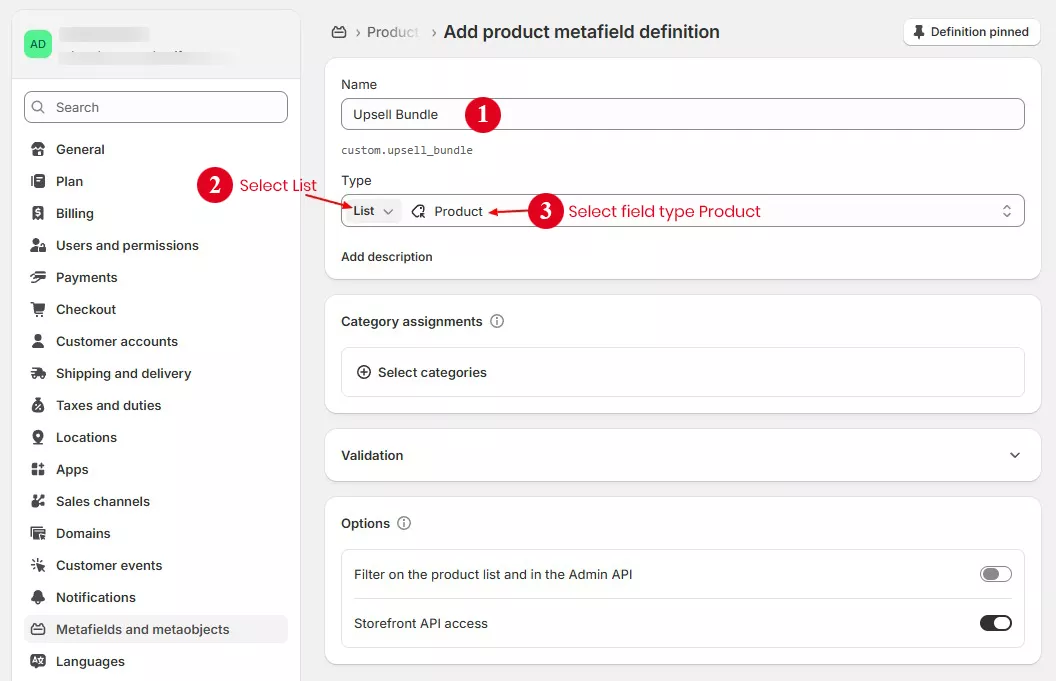
Metafields example for Upsell products Bundle

Step 2 :

Open product page in store admin and scroll page to product metafields section at bottom of page. Select related products and save page.
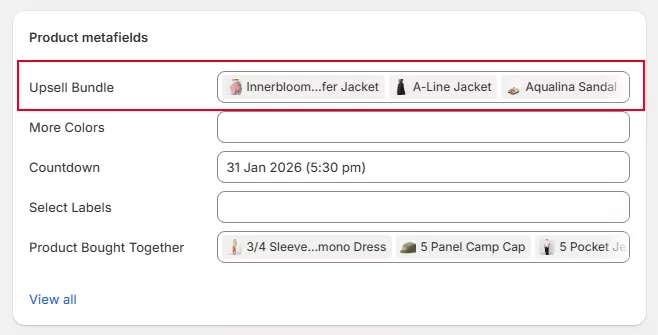
Select products for Upsell Products Bundle

Step 3 :

Now go theme editor and open product page > Go to Upsell product bundle section and select metafields value using dynamic source button.
Check image below for example.
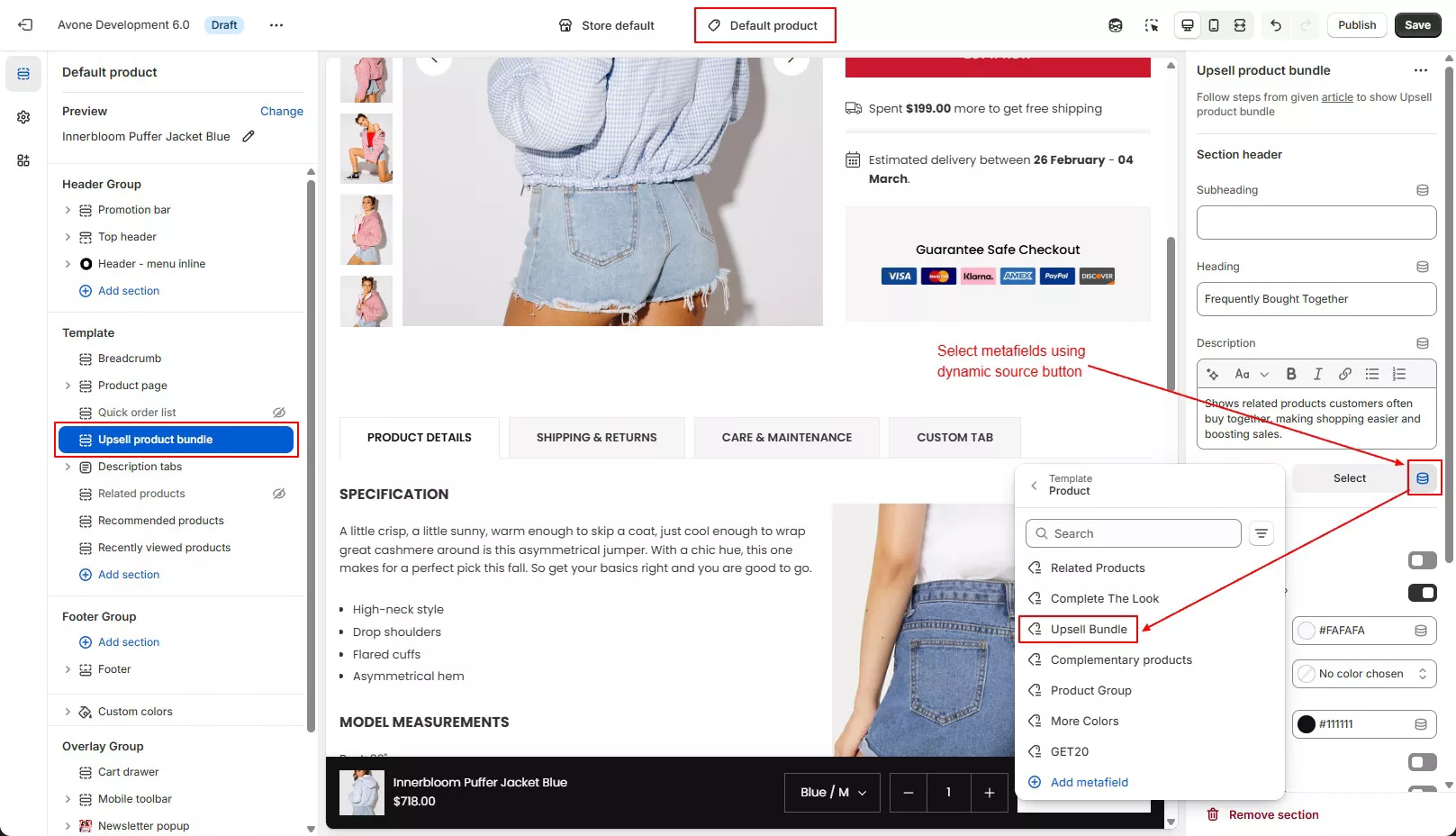
Select metafiled using dynamic source button

Save page after select metafields and section will be display in page. You can manage style and colors in same section.

Active discount #

Follow below steps to active discount for upsell products bundle. Discount will be apply in cart and checkout page.

Step 1

Now Go to store admin > Discounts > create a discount > Select discount type

You can select “Amount off products” or “Buy X get Y” discount type.

Step 2

Choose “Automatic discount” discount Method and setup as below example image
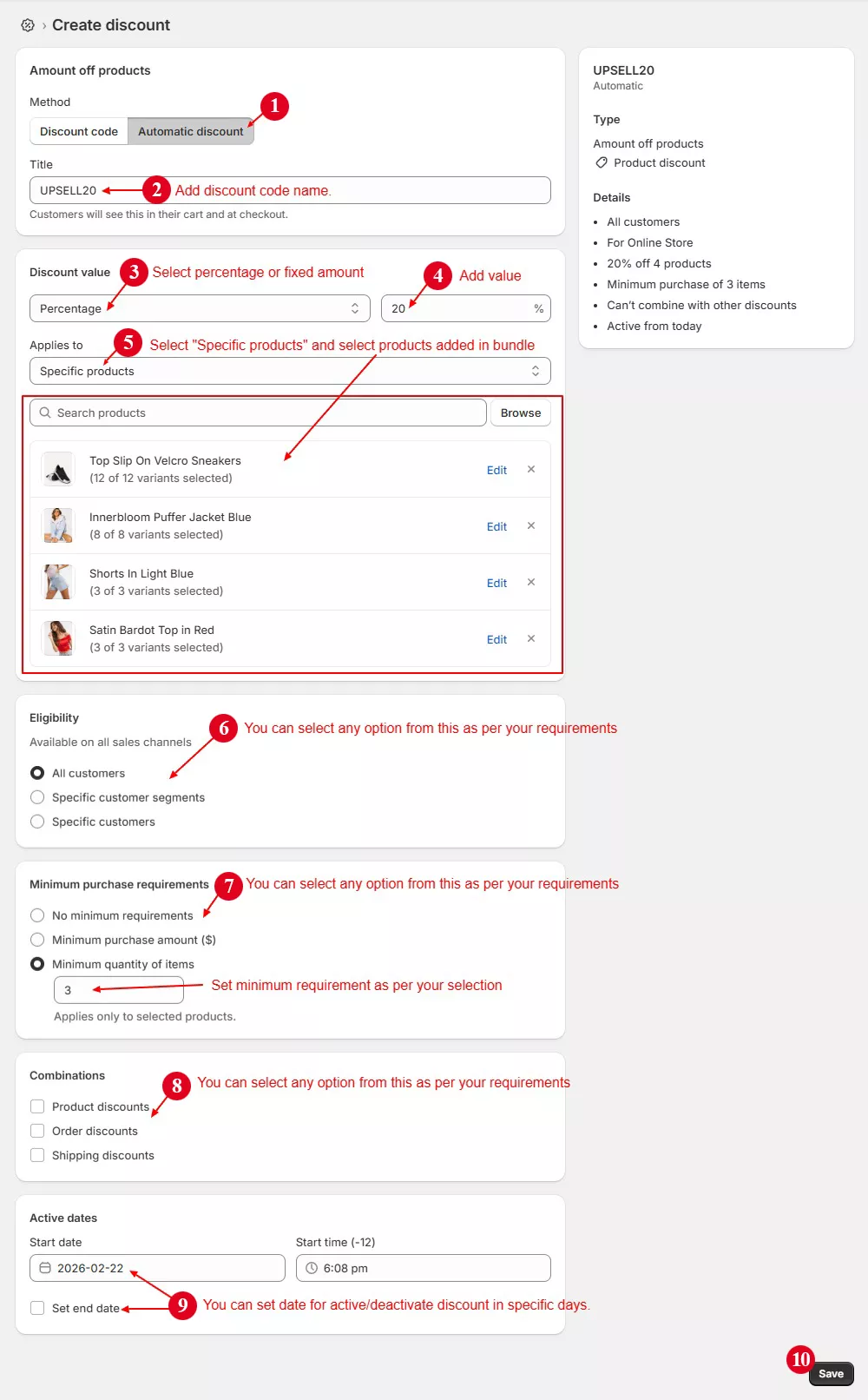
Create discount code for upsell products bundle

A discount code will be applied on the cart and checkout pages.


Theme version 5.x.x and below #

To offer bundled products and discounts, first you need to create a collection of all the products you want to offer bundled and discounted. ( You can add products that buyers should buy together.)

Step 1 :

From your shopify store admin -> Products -> Collections and Create collection.
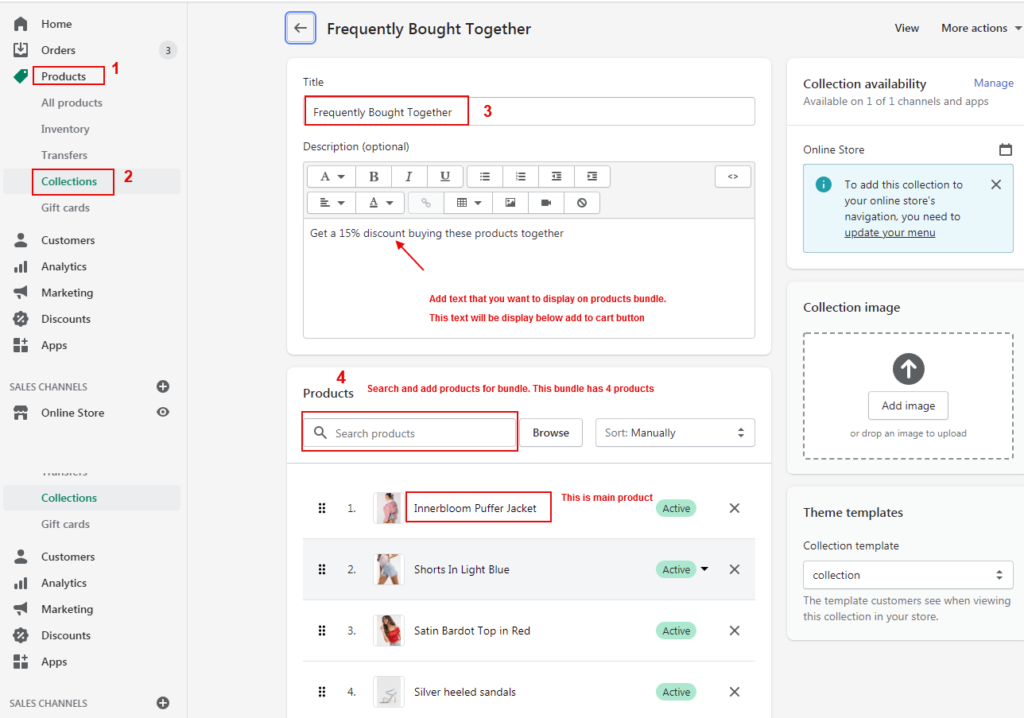
image

Step 2 :

From your store admin โ€“> Click "Settings" -> Metafields and metaobjects -> Products โ€“> Add Definition

Create metafield as shown in the below image.
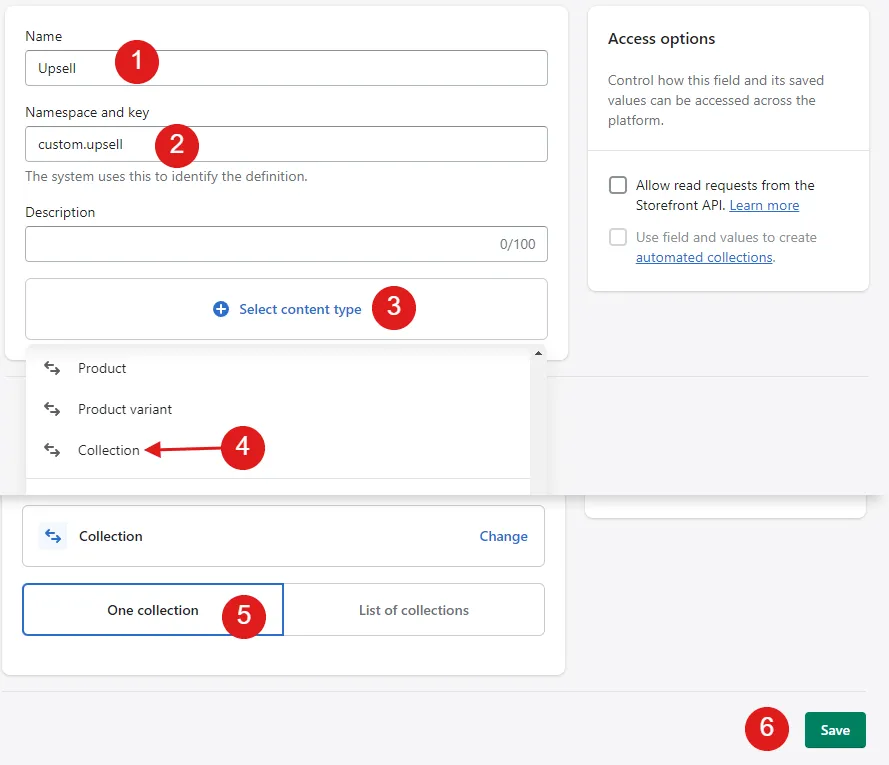
Step 3 :

Now go to your product and scroll down to โ€œMetafieldsโ€ and select the collection created in step 3 and save the page.
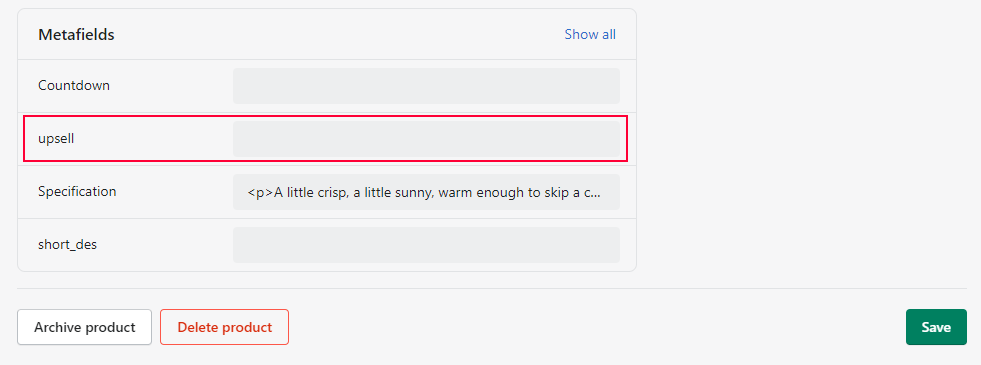
image

Step 4 :

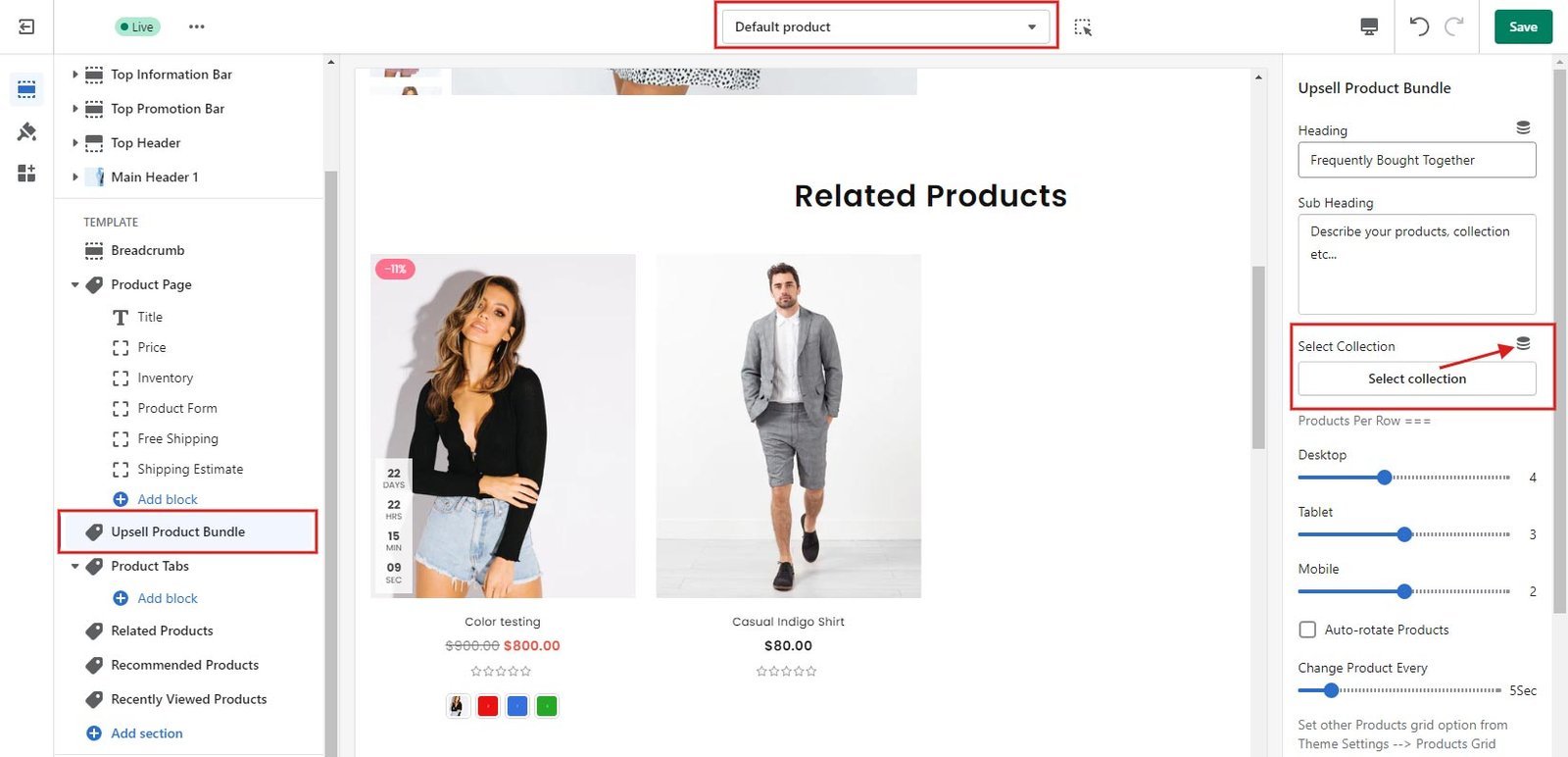
Now, on the product page, open the โ€œUpsell Product Bundleโ€ section in theme customize and add the metafield collection to the โ€œSelect Collectionโ€ field as shown below.

image

Create discount #

Now Go to Discounts section in store admin to create a discount code that you want to offer for product bundles (a collection that you just created).
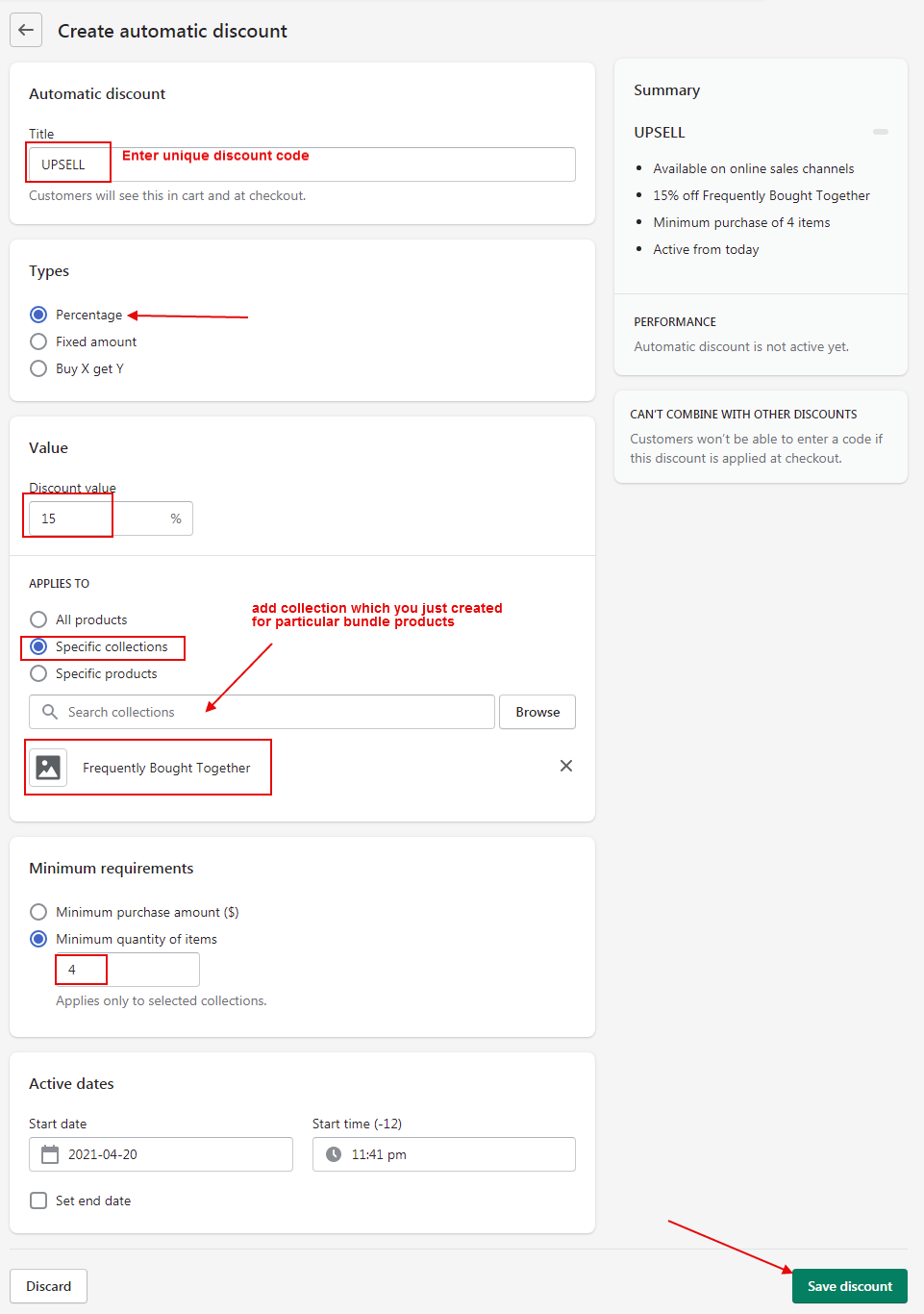
image

A discount code will be applied on the cart and checkout pages.

What are your Feelings

Share This Article :

  • Facebook
  • X
  • LinkedIn
  • Pinterest
Table of Contents
  • Theme version 6.x.x
    • Active discount
  • Theme version 5.x.x and below
    • Create discount
logo-200

We build premium Shopify themes that empower merchants to create exceptional online stores.Trusted by thousands of businesses worldwide, our themes are built for easy customization, powerful features, and exceptional performance.

ย 

Information
  • About Us
  • Our Services
  • Our Partners
  • Our Blogs
  • Contact Us
Customer support
  • Support Ticket
  • Knowledge Base
  • FAQโ€™s
  • Customization Request
  • Project Request
Why choose AdornThemes
footer-logo-1
footer-logo-2
5.0
★★★★★

987 Reviews

ยฉ 2026 AdornThemes – All Rights Reserved.

|

  • Privacy policy
  • Refund Policy
  • Facebook-f
  • Instagram
  • Youtube
  • Linkedin-in
Get your first 3 months for $1/month.
Scroll