Customize the appearance of your product on the product page.
Product Main #
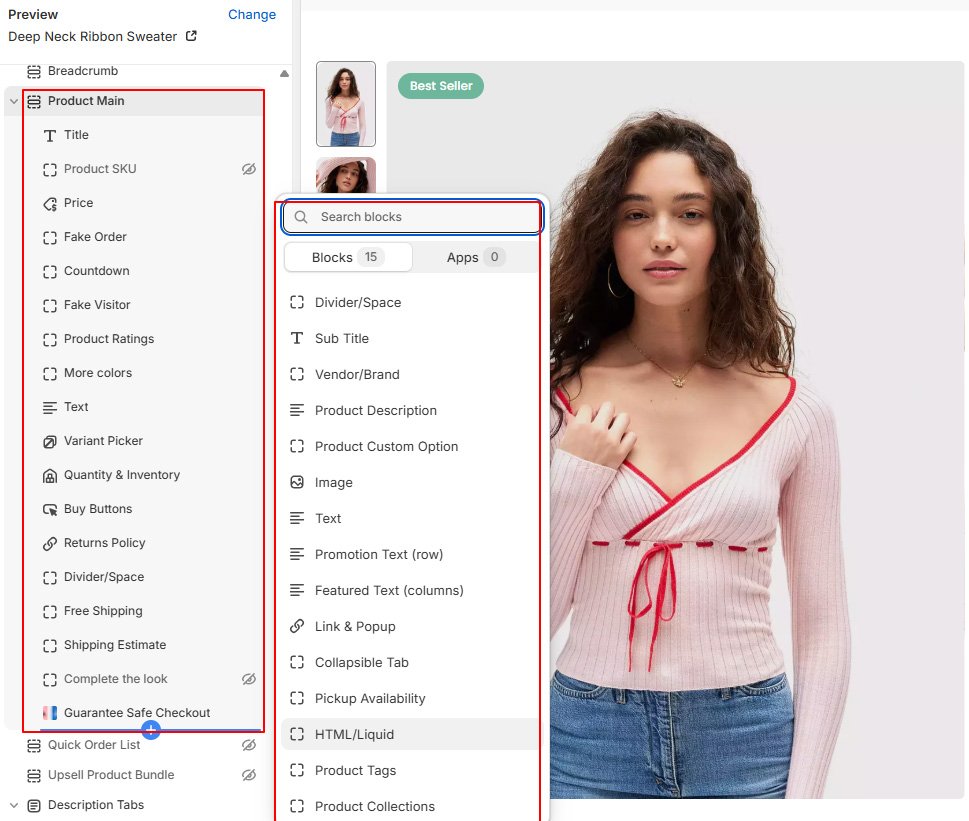
Start designing product page by adding blocks from the Product Main section. You can easily rearrange the position of these blocks using Drag & Drop
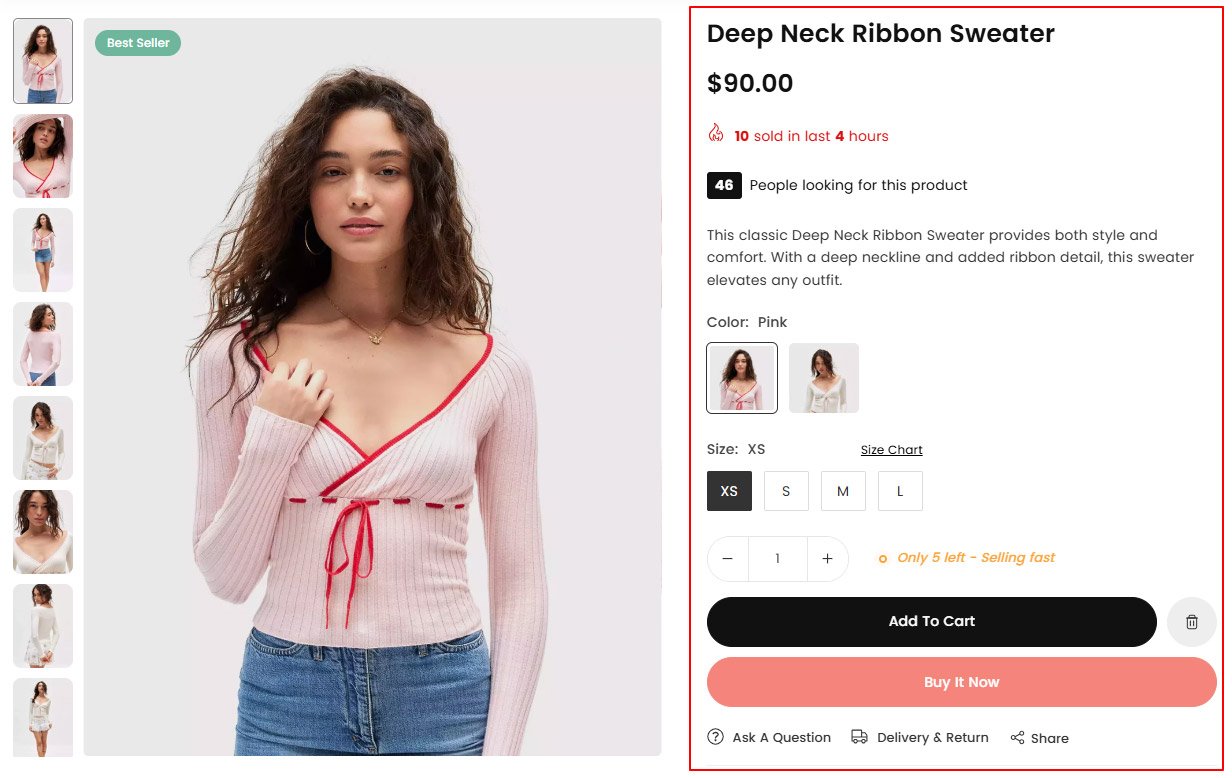
- In the theme editor, Choose Default product top dropdown menu.
- Click Product Main Section and adjust style,
- Hover your mouse over the section to add a new block and click save
Section Settings
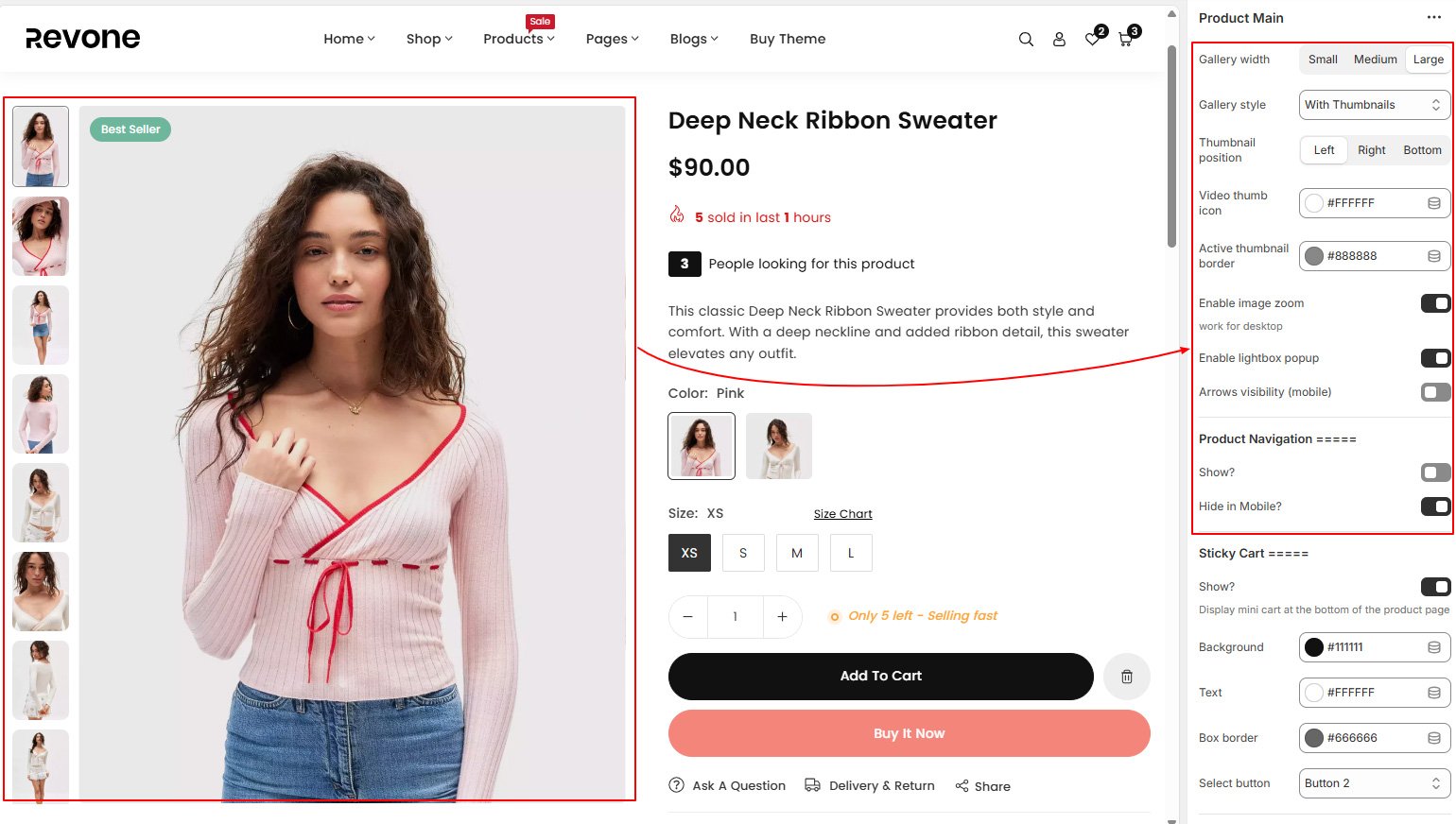
List of various blocks available for use in your store.
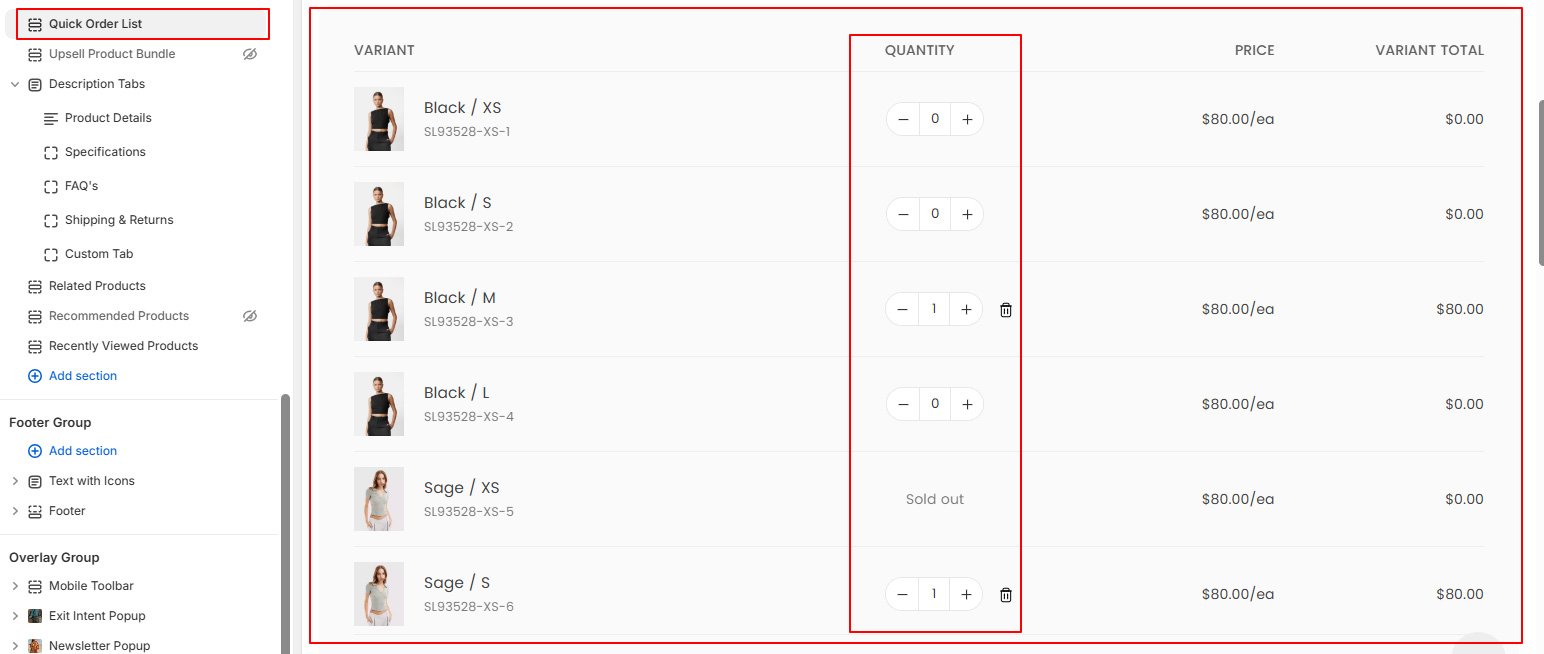
Quick Order List #
Right below product main section, you can display quick order list section that display your order quick list
Upsell Product Bundle #
On the product page, you have option to showcase the Upsell Product Bundle section just below the product photo gallery. Upsell products bundle helps you to turn more visitors into happy customers.
When a customer is looking at a product, they will also see the bundled products underneath it, showing how much they will save, and the Add to cart button for the whole bundle. The bundled products will be added to cart in one click!
- In the theme editor, Choose Default product top dropdown menu.
- Click Upsell Product Bundle
- Make necessary change and save
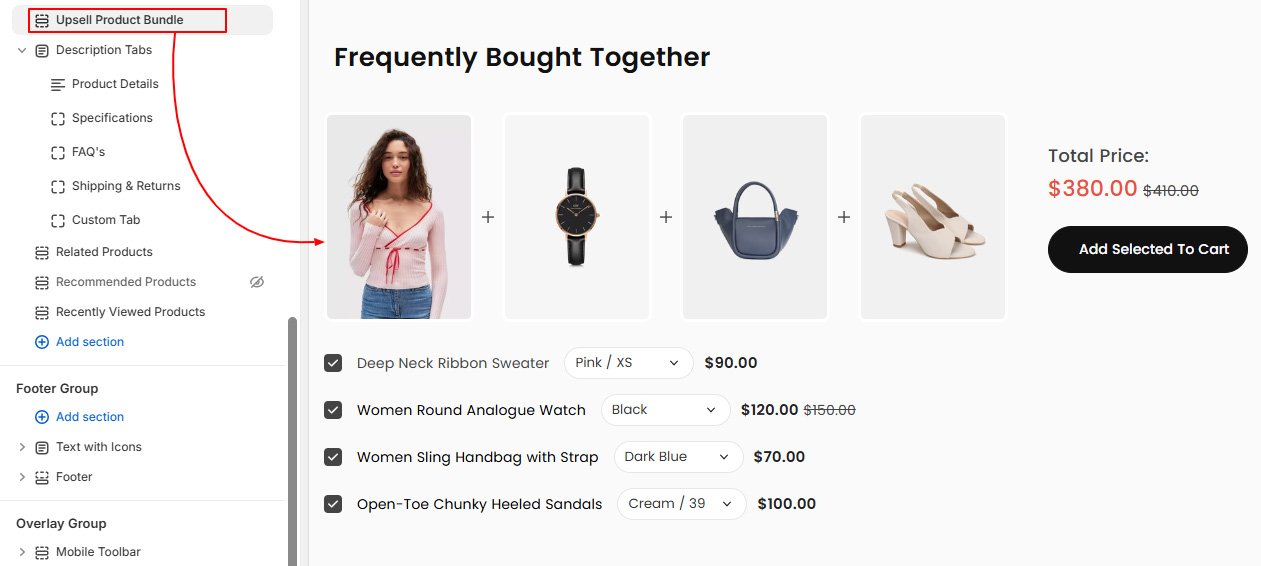
Follow steps from given article to show Upsell Product Bundle.
Description Tabs #
Show Description Tabs Section below the product photo gallery.
Product description tabs in Shopify play an essential role in improving user experience and neatly organizing product details. These tabs enable store owners to categorize detailed descriptions, specifications, reviews, sizing charts, and FAQs into user-friendly sections. By utilizing these tabs, customers can quickly find the information they need without feeling overwhelmed by lengthy text blocks.
- In the theme editor, Choose Default product top dropdown menu.
- Click Description Tabs section
- Adjust tabs style from section
- Hover your mouse over the section to add a new block and click save
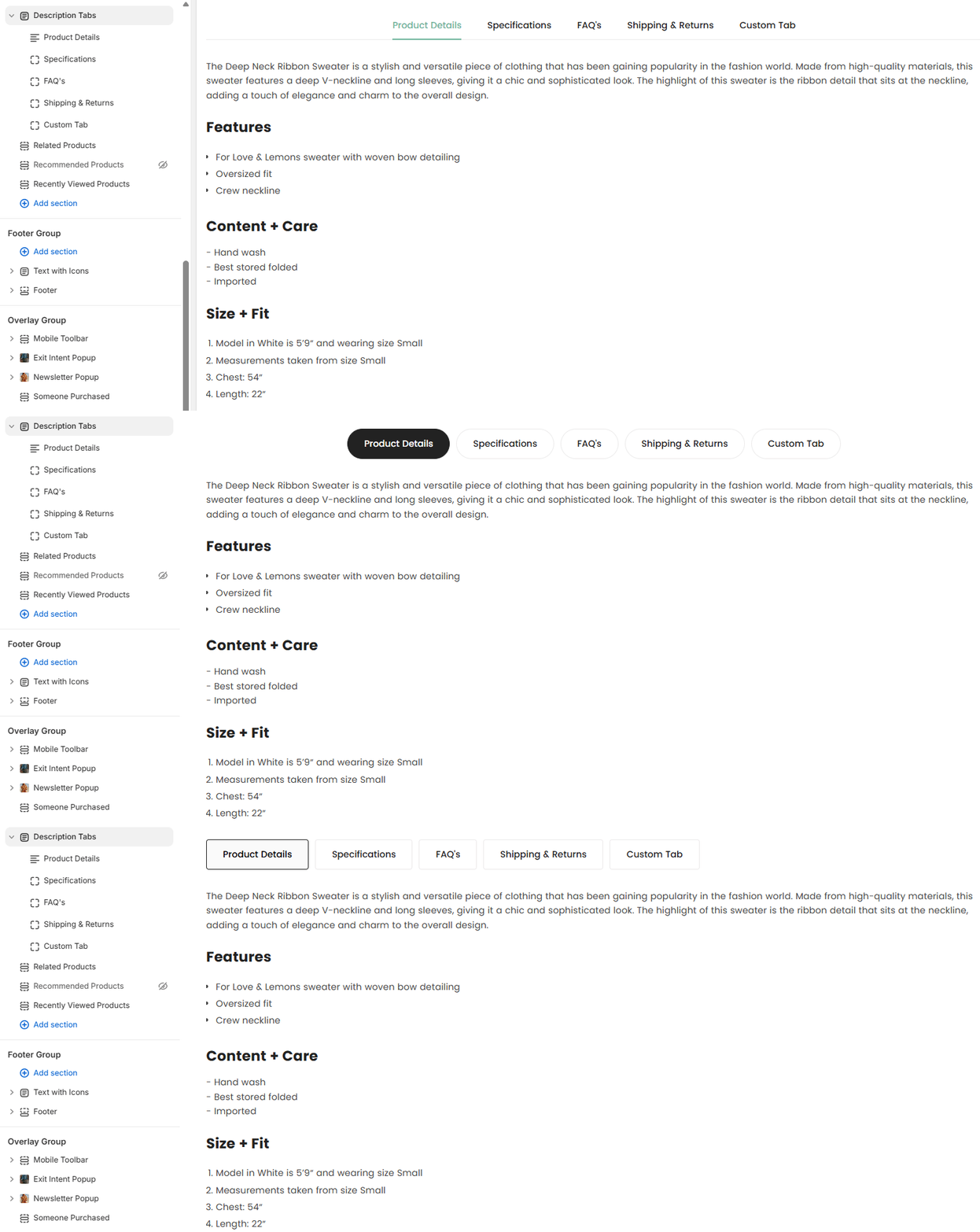
There are six different tab blocks that you can display on the product page.
- Product Description : Display product description that you have added for products from store admin.
- Review : Display product reviews from app.
- Size Chart : Display size chart for products: Set content for size chart from Theme Settings -> Size Chart.
- Extra Tab: You can either show the same text for all products in your store or customize different text for each individual product.
- Specifications : This tab allows store owners to outline various attributes of their products, including dimensions, weight, materials used, and compatibility details. How to show?
- FAQ’s : This feature allows merchants to compile frequently asked questions and provide clear, concise answers, which can cover various topics such as sizing, materials, shipping details, return policies, and care instructions. FAQs tab can significantly improve user engagement and increase conversion rates by ensuring that shoppers have all the information they need at their fingertips while browsing products. How to show?
Related Products #
- In the theme editor, Choose Default product top dropdown menu.
- Click Related Products section
- Make necessary change and save the page
How to display related products?
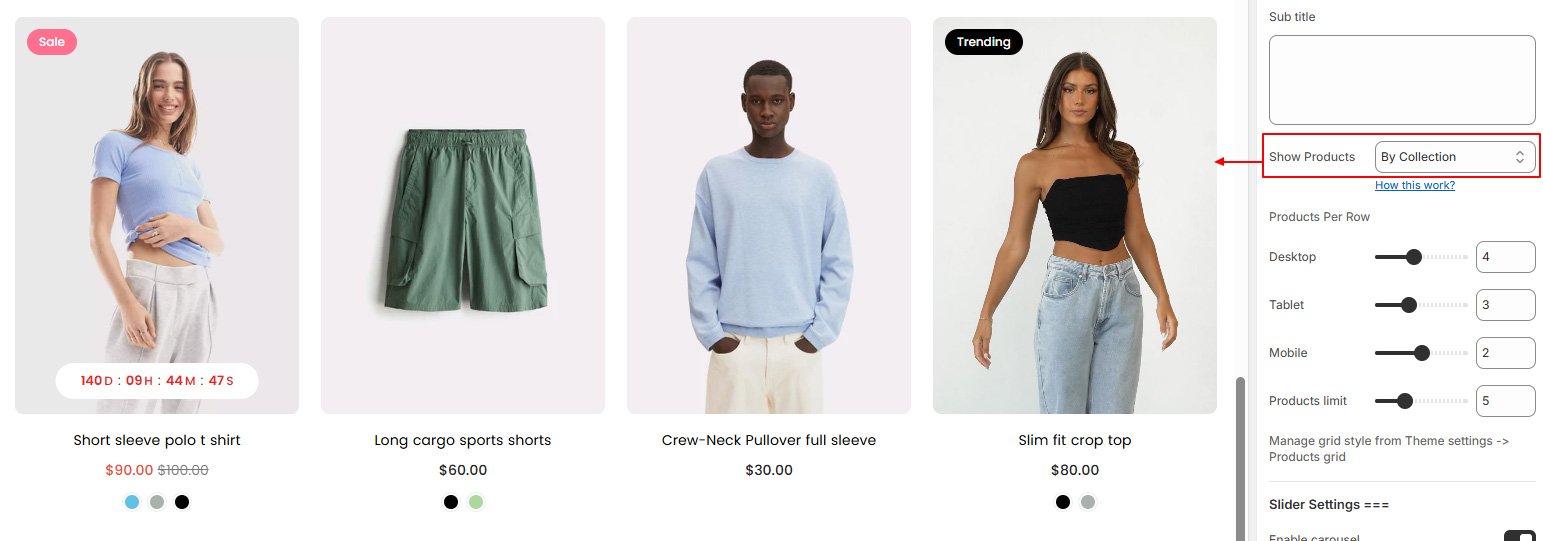
Recommended Products #
- In the theme editor, Choose Default product top dropdown menu.
- Click Recommended Products section
- Make necessary change and save the page
How recommended products work ->
Recently Viewed Products #
- In the theme editor, Choose Default product top dropdown menu.
- Click Recently Viewed Products section
- Make necessary change and save the page