Adorn ThemesAdorn ThemesAdorn Themes
  • Services
  • Themes
    • Avone
    • Revone
    • Vogal
    • Optimal
    • Belle
  • Portfolio
  • Support
    • Open Ticket
    • Knowledge Base
    • Theme Documention
  • Blog
    • Shopify Themes
    • Shopify Apps
    • Ecommerce
    • SEO
  • About us
  • Contact us
Create a Free Store Button

How can we help you?

Theme Installation

  • Avone – How to install theme?
  • Avone Theme Update – Release Notes.
  • Avone – How to update your shopify theme?

Theme Settings

  • How to set free shipping?

Navigation

  • How to use Megamenu Navigation
  • How to display images for mobile menu items?

Collection Page

  • How to set product labels?
  • Set Collection banners, Short description and Countdown by metafields.
  • Collection Page – How to set product filters ?
  • Icon image for collection

Product Page

  • How to set product labels?
  • Add different size chart for each product?
  • Product Page – Product Swatches – Product Variants
  • Set product pre-order for shopify 2.0
  • Related products section
  • Display Complete the look products
  • Display different tab details for each product
  • How to add product custom option?
  • How to display FAQs tab on product detail page?
  • How to set upsell product bundle
  • Add product descriptions with columns.
  • How to display product specification tab on product page?
  • How to display color variant media gallery?

Page Setup

  • Create Custom Page and add sections?
  • How to create Landing page?
  • How to create metafield for page banner

Blog Pages

  • How to show specific product list in blog article page

FAQs

  • Set product pre-order for shopify 2.0
View Categories
  • Home
  • Knowledge Base
  • Avone Shopify Theme
  • Theme Installation
  • Avone – How to install theme?

Avone – How to install theme?

Installing the Avone theme on your Shopify store is a straightforward process that can significantly enhance the aesthetics and functionality of your online shop. Follow these detailed steps to seamlessly integrate the Avone theme into your store:

Important Note: You can’t directly upload the zip file that you have downloaded from Themeforest to your Shopify store. So first unzip downloaded file from themeforest

Install Default Demo #

Step 1. Download theme package from Themeforest. https://themeforest.net/downloads

Step 2. Extract/Unzip all files from downloaded package. Find “avone-install-vx.x.x.zip“ file. This is theme default demo zip file. Install this file on your shopify store.

Step 3. Logging into your Shopify store and Navigate to Themes -> Click “Add theme” -> Upload zip file. Click here
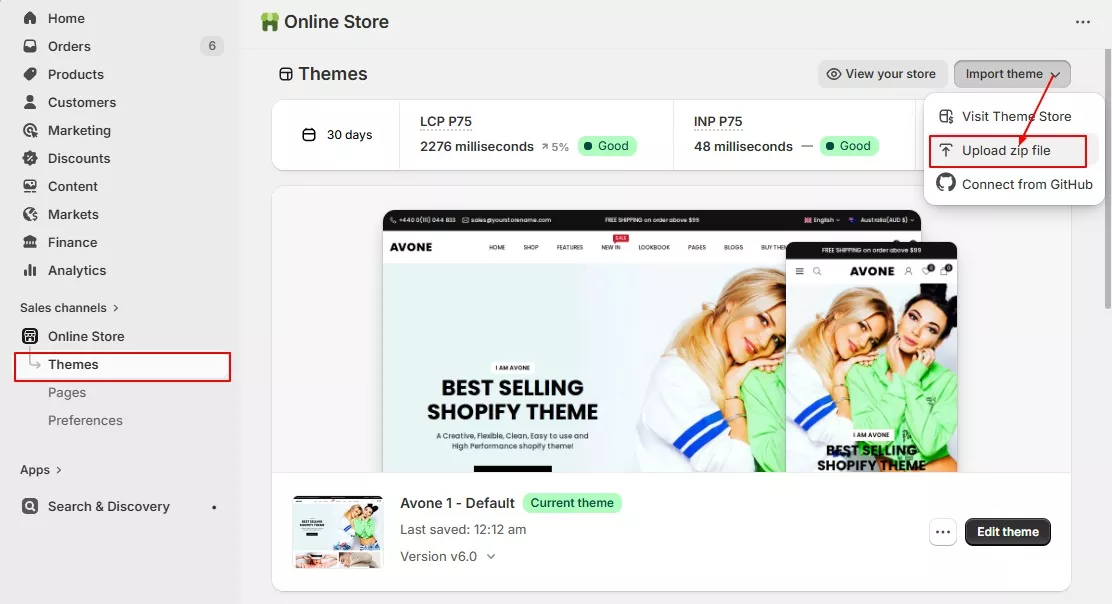
Install Avone Multipurpose Shopify Theme OS 2.0

Step 4. Click on Publish button to publish new theme


Install premade Home skins #

Step 1. Follow above step 1 to step 3

Step 2. Now go to the “Demo Preset” folder that you downloaded from themeforest.net

Avone theme demo preset

All you need to do is copy all data from index.json and settings_data.json file from any preset folder file and paste it on same theme file on your store. Explain in below steps..

Step 3. In Preset folder, You will see folders for all available skins. Please open any skin folder which you would like to install.

Click here to see all available home skins/demos

You will see 2 files index.json and settings_data.json. Copy these files data one by one


Step 4. Navigate to the Avone theme that you recently uploaded. Click dot icon and then click on Edit Code.

Step 5. Find Templates folder and open index.json file.

Step 6. Select and Remove all data from this file. Now paste copied preset data. ( index.json file data you copied in Step 3) And Click Save.

copy/past code of index.jason file

Step 7. Find Config folder and open settings_data.json file.

Step 8. Select and Remove all data from this file. Now paste copied preset data. ( settings_data.json file data you copied in Step 3) And Click Save.

Copy/Past settings_data json file code

Step 9. By Default your uploaded theme is unpublished. Another theme is active on your store. You can publish new theme when you are done with theme configuration and setup.

Step 10. Click on Publish button to publish new theme

What are your Feelings
Table of Contents
  • Install Default Demo
  • Install premade Home skins
Adorn Themes

We build premium shopify themes. Our themes are adored by thousands of merchants for their user-friendly nature, powerful features, reliable performance, and exceptional user interface

Information
  • About Us
  • Contact Us
  • Our Services
  • Our Partners
  • Our Blogs
Customer support
  • Support Ticket
  • Knowledge Base
  • FAQ’s
  • Need Customization?
  • Project Request?
WHY CHOOSE ADORNTHEMES
footer-logo-1
shopify-partner--logo
© 2025 AdornThemes - All Rights Reserved.
  • Social Media
  • Social Media
  • Social Media