Check Avone shopify Theme Updates and Release Notes. It’s essential to understand how to update Avone Shopify theme correctly to avoid issues.
🔴 Important Notice – For Existing Customers
Fresh Installation Required for old customers. Version 6.0.0 is a complete architectural rebuild of the Avone theme. Due to major structural and codebase changes, this version cannot be updated from older Avone versions. However, previous Avone versions remain fully available and supported. You can choose the version that best fits your project needs. Please follow these steps:
- Install this version as a new theme.
- Do not overwrite your existing theme.
- Rebuild your store using the new 50+ sections and theme blocks.
- Manually reconfigure custom settings or custom code if needed.
The new structure provides significantly improved flexibility, modern design standards, and better long-term scalability.
Step 1 : First download the latest package from themeforest. https://themeforest.net/downloads Knowing how to update Avone Shopify theme involves starting with the correct files.
Step 2. Extract/Unzip all files from the downloaded package. Find “avone-install-vx.x.x.zip” and unzip the file.

Step 3. Now download the active theme from your store. How to download theme? This step feeds into understanding how to update Avone Shopify theme effectively.
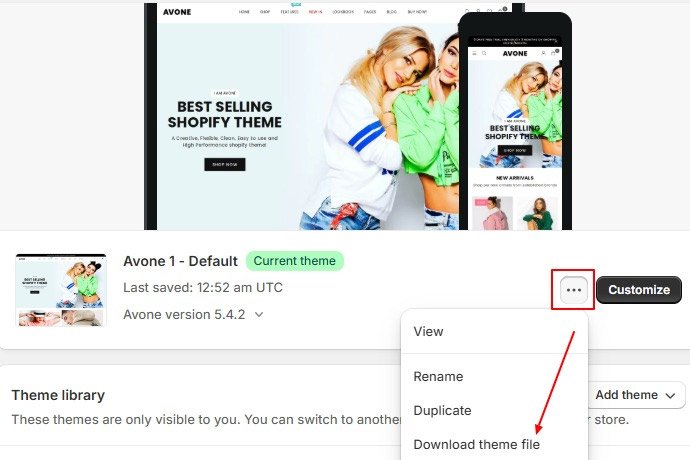
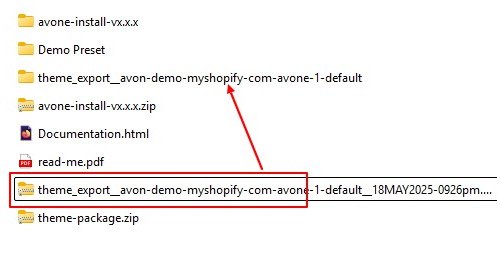
Step 4. Unzip the downloaded current theme zip file.
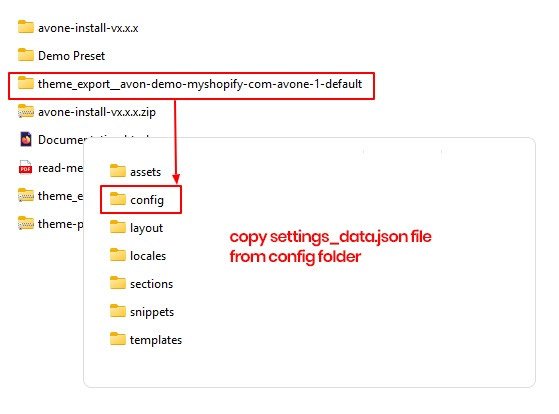
Step 5. Open the current theme folder and copy settings_data.json file from the config folder.
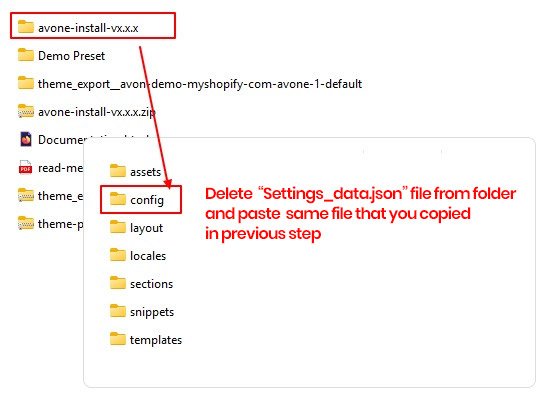
Step 5.1 Now go to the latest theme files (the file you downloaded from themeforest and unzipped – step 2).
Step 6. Open the current theme folder and copy all .json files from the templates folder.
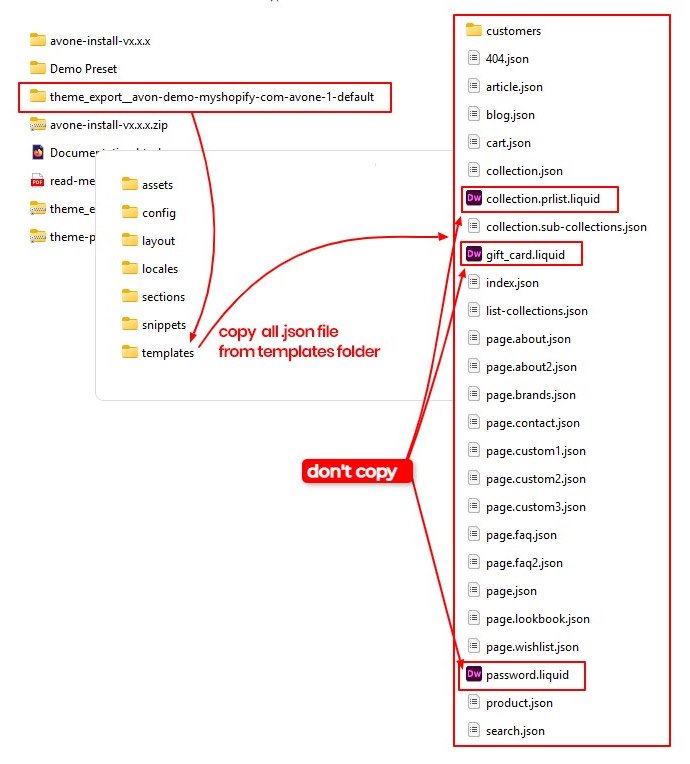
Step 6.1 Now go to the latest theme files (the file you downloaded from themeforest and unzipped – step 2).
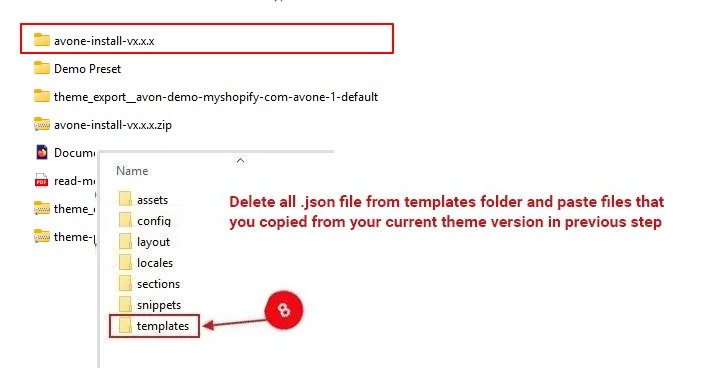
Step 7 (Optional). Follow this step if your store language is other than English.
Do copy the language file from the Locales folder. I.e If store language is French, then do copy fr.json language file from the current theme.

Step 7.1(Optional). Go to the latest theme files, delete the language file from the locales folder and paste the language file which you copied from your current theme in step 7.
Step 8. Now select all folders in the latest theme folder and compress them into a single zip file. This is the latest theme version. Upload this zip file on your store. Thus, knowing how to update Avone Shopify theme is crucial for maintaining your store.
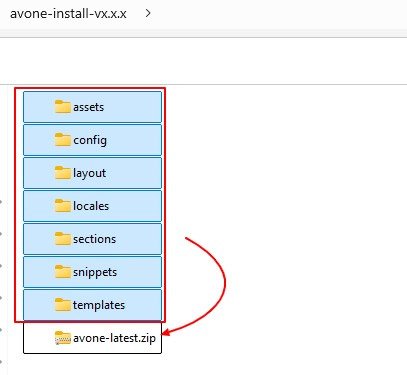
Step 9: From your admin click on Online Store -> Themes -> Click Add theme -> Upload zip file
Step 10 : Check the preview of the new theme version. Make sure everything is working fine. Now you can publish your new theme.
Dear Buyers ,
You may encounter a few common errors while updating your theme; however, not all buyers will face these issues.
Not to worry – we have attached screenshots below on how to resolve them. Please scroll down to the bottom of this page for instructions
After the theme has been updated, do as below
- Add “Variant Options” block on the product page to showcase the product’s variants. ( We have implemented a separation between the Product Variant and Add to Cart button by placing them in different blocks to enhance more design flexibility. )
- Add “Wishlist & Popup Links” block on the product page.
- If you have used video section on your store, Select video from video section.
- Create FAQ template and add FAQ section – Optional .
All Avone 4.5 and older version users: Kindly refer to the note at the bottom of this page. Thank you